
What Is Screen Mirroring? AirPlay, Chromecast, and Miracast Explained (2026)
Screen mirroring copies your phone screen onto your TV, live. AirPlay, Chromecast, and Miracast each do it differently — here is which one you have and how it works.

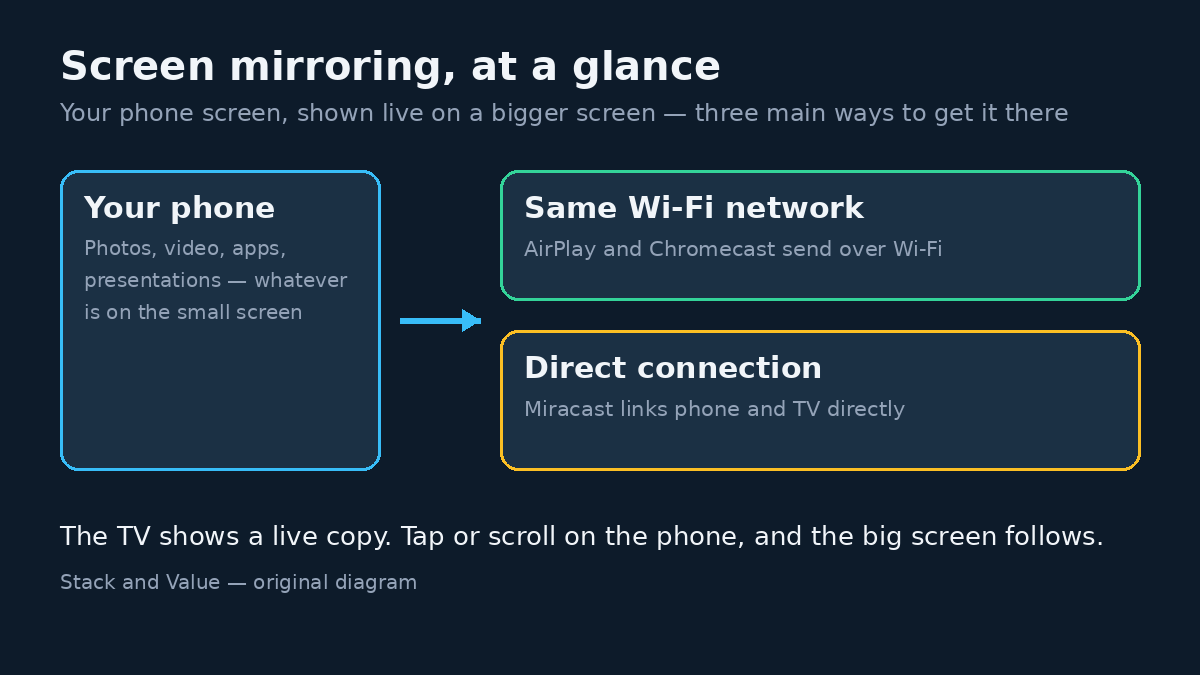
Screen mirroring puts whatever is on your phone, tablet, or computer onto a TV or monitor, live. As of November 22, 2026, three standards do most of this work — AirPlay, Chromecast, and Miracast — and which one you use is mostly decided by the devices you already own.
What screen mirroring is
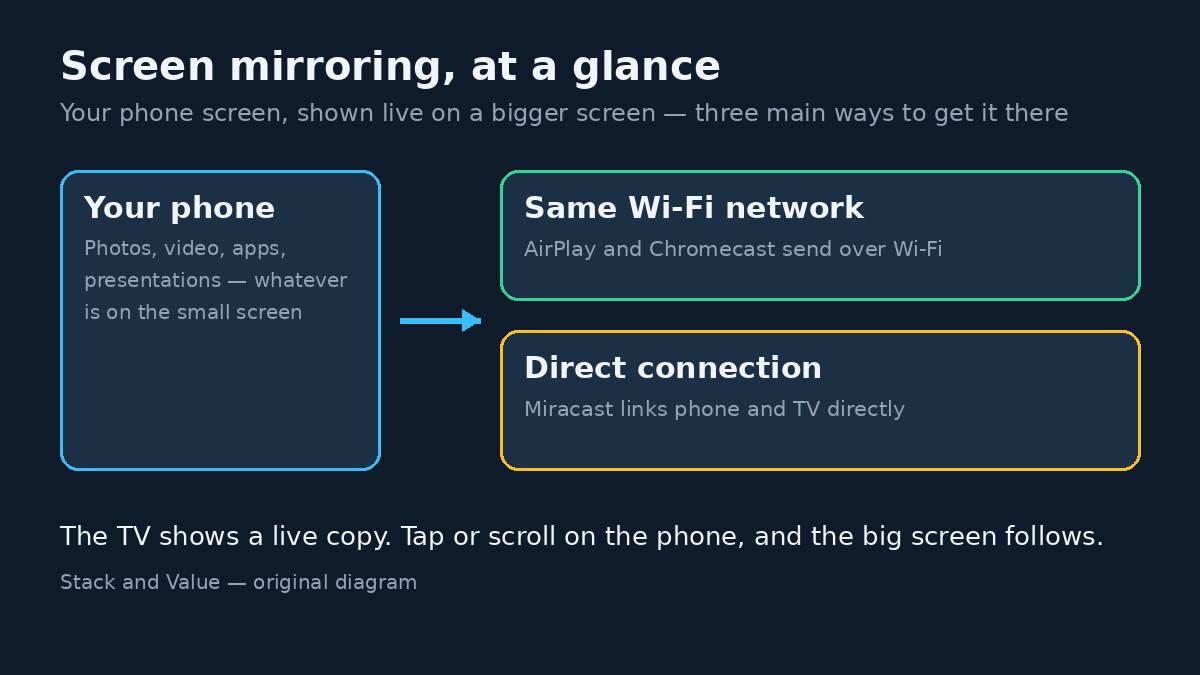
Screen mirroring is a live copy of your screen sent to another display. Open a photo, scroll a web page, or start a presentation on your phone, and the TV shows the same thing at the same moment, in the same portrait or landscape orientation. Nothing is uploaded or stored — the sending device captures its display, compresses it as video, and streams it to the receiver over a short-range connection.
Because the whole screen is copied, everything appears — including notifications, messages, and pop-ups. That is the detail people forget in meetings and family photo sessions alike. Turning on Do Not Disturb before you mirror is a habit worth building.
The three standards, in plain English
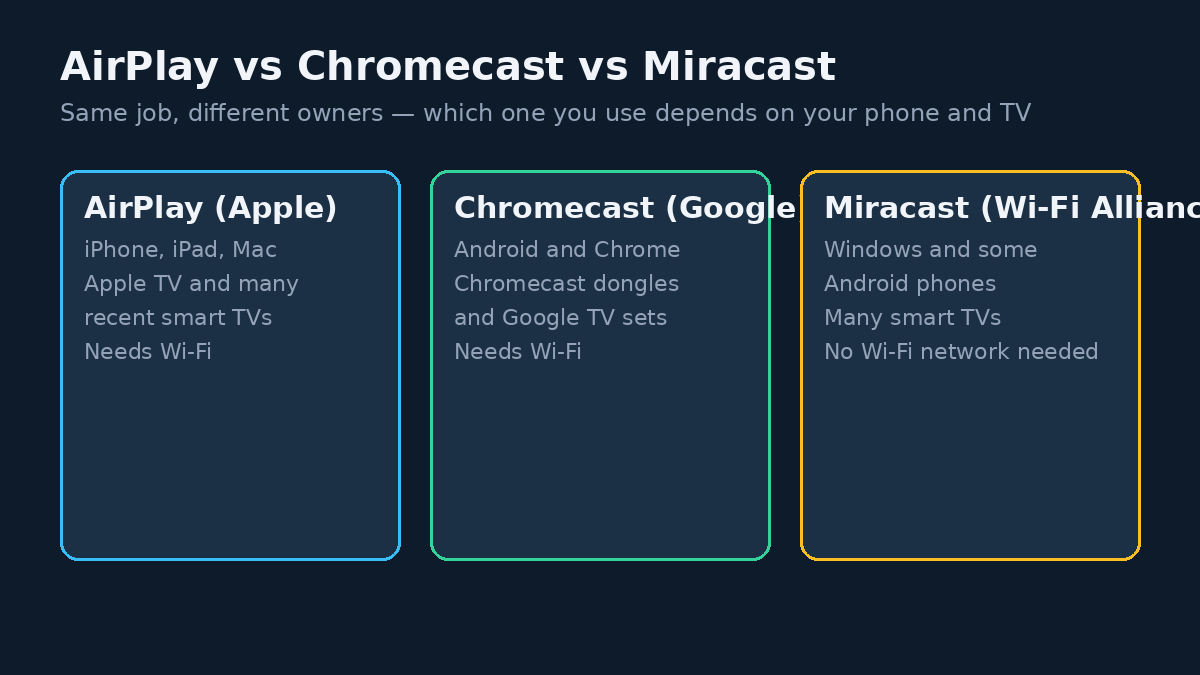
- AirPlay (Apple). Built into iPhone, iPad, and Mac. It sends to an Apple TV box or to the many recent smart TVs from Samsung, LG, Sony, and others that include AirPlay support. Phone and TV must be on the same Wi-Fi network. On an iPhone, it lives in Control Center under "Screen Mirroring."
- Chromecast (Google). Built into Android phones and the Chrome browser. It sends to a Chromecast dongle, a Google TV device, or a TV with Chromecast built in — again over the same Wi-Fi network. In many apps you tap the cast icon; from an Android phone's quick settings you can mirror the full screen.
- Miracast (Wi-Fi Alliance). An open standard supported by Windows PCs and some Android phones, and built into many smart TVs and streaming sticks. Miracast is the odd one out: it creates a direct device-to-device link, so it can work with no home Wi-Fi network at all — handy in classrooms, offices, and hotel rooms. Apple devices do not support it.
The practical rule: iPhone owners use AirPlay, Android owners use Chromecast, and Windows users usually reach for Miracast. The TV in front of you decides the rest — check its input or settings menu for the name it supports.
Mirroring is not casting
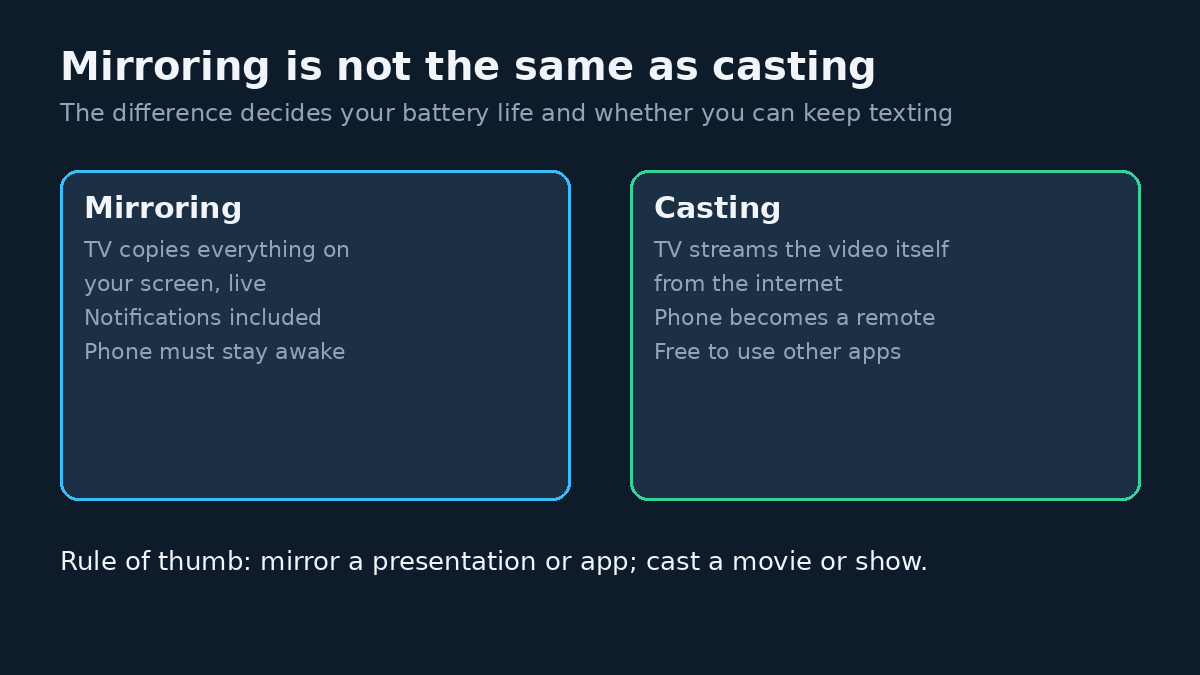
These two get confused because the same button often does both. When you cast a video from an app like YouTube or Netflix, the TV streams the video directly from the internet and your phone becomes just a remote — you can answer messages or even let the phone sleep. When you mirror, the TV shows your screen itself, so the phone does the work, drains its battery, and must stay awake.
Cast movies and shows when the app offers it; mirror for everything else — presentations, photo libraries, web pages, games, and apps with no cast button.
Why it sometimes lags or stutters
Mirroring is a live video stream, so a weak Wi-Fi signal, a crowded network, or a long distance to the router shows up as delay, blocky picture, or frozen frames. Games suffer most because even a small lag is noticeable. Moving closer to the router, using a 5 GHz network, and closing other heavy downloads usually fix casual stutter. For a presentation that absolutely cannot glitch, an HDMI cable is still the boring, reliable answer — mirroring is wireless convenience, not a guaranteed-perfect picture.
Bottom line
Screen mirroring sends a live copy of your screen to a bigger display. AirPlay covers Apple devices, Chromecast covers Android and Chrome, and Miracast covers Windows and direct connections with no network required. Use casting instead when an app offers it for video, silence your notifications before you start, and keep a cable handy for the moments wireless cannot afford to fail.

Member discussion