
What Is DNS? The Internet's Phone Book, Explained (2026)
DNS turns the names you type into the numbers computers connect to. Here is how a lookup works, the three record types worth knowing, and the free resolver switch that can add speed, privacy, and malware blocking.

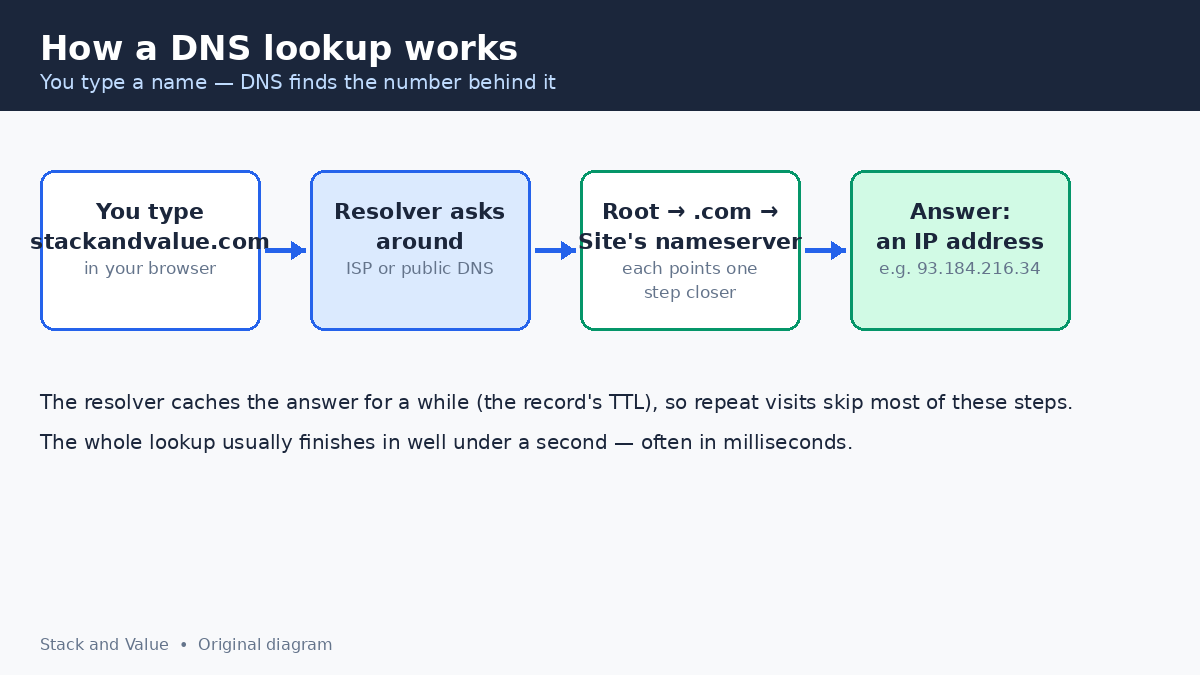
Every time you open a website, your device quietly looks up a number first. DNS — the Domain Name System — is the internet's phone book: it turns names people can remember, like stackandvalue.com, into the numeric IP addresses computers actually connect to. You use it hundreds of times a day without seeing it. Here is how it works, and the one setting worth changing.
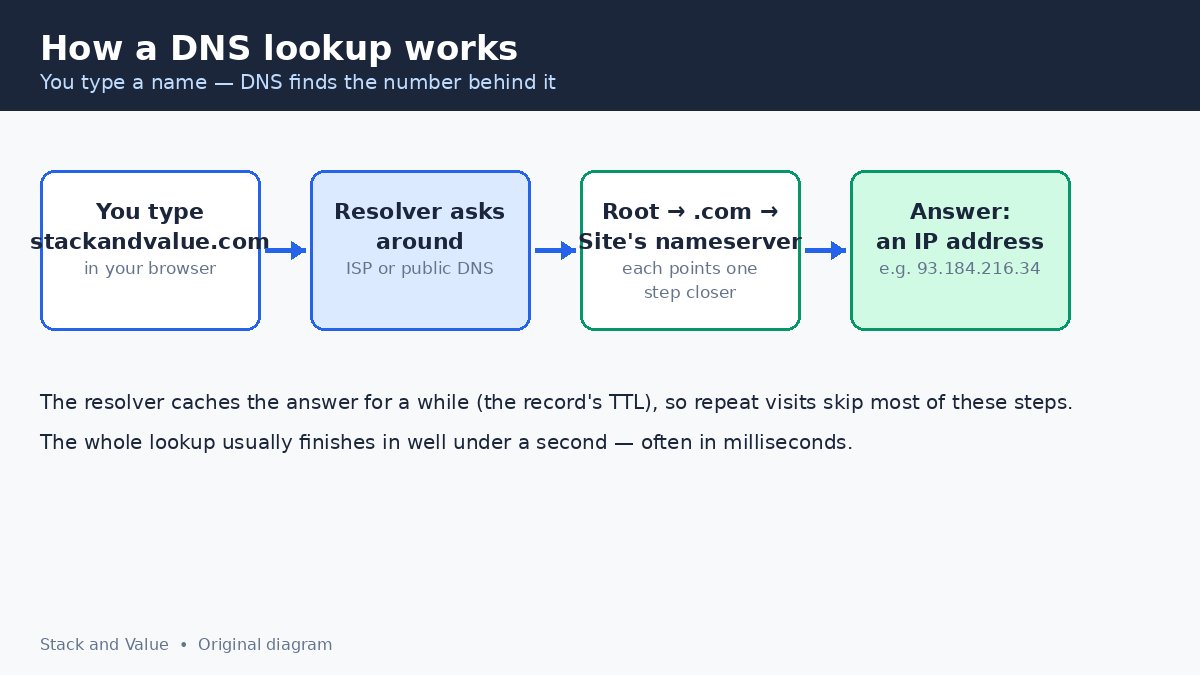
Diagram: Stack and Value (original)
What DNS does, in plain English
Computers reach each other using IP addresses — numbers such as 93.184.216.34 (IPv4) or a longer IPv6 string. Names exist for people, not machines. DNS bridges the two: you type a name, DNS returns the number, and your browser connects to that number.
Your phone or computer does not do this lookup alone. It asks a resolver — usually a server run by your internet provider, or a public service you choose instead. The resolver does the legwork and remembers the answer for a while, so the next visit is faster.
How a lookup works, step by step
Say you visit a site for the first time:
- Your device checks its own cache. If it looked the name up recently, it reuses that answer and stops here.
- It asks the resolver. If the resolver has a fresh cached answer, it replies at once.
- If not, the resolver asks a root server where to find the ending — .com, .org, and so on. There are 13 root server identities, run as clusters of machines worldwide.
- The root points to the top-level domain (TLD) servers for that ending, which point to the site's own authoritative nameserver — the source of truth for that domain.
- The authoritative server returns the record: the IP address for the name.
- The resolver passes the number to your device, caches it, and your browser connects.
Each answer carries a TTL (time to live) — how many seconds resolvers may cache it before asking again. That is why a changed DNS record can take a while to show up everywhere: old answers sit in caches until their TTL runs out. A full uncached lookup still usually finishes in well under a second.
The record types you will actually meet
A domain's settings are a small set of records. Three cover most of what you will ever see:
| Type | What it does | Plain-English example |
|---|---|---|
| A | Points a name to an IPv4 address | stackandvalue.com lives at this server number |
| CNAME | Points a name to another name (an alias) | www follows whatever the main name points to |
| MX | Names the servers that receive email for the domain | Mail for this domain goes to these mail servers |
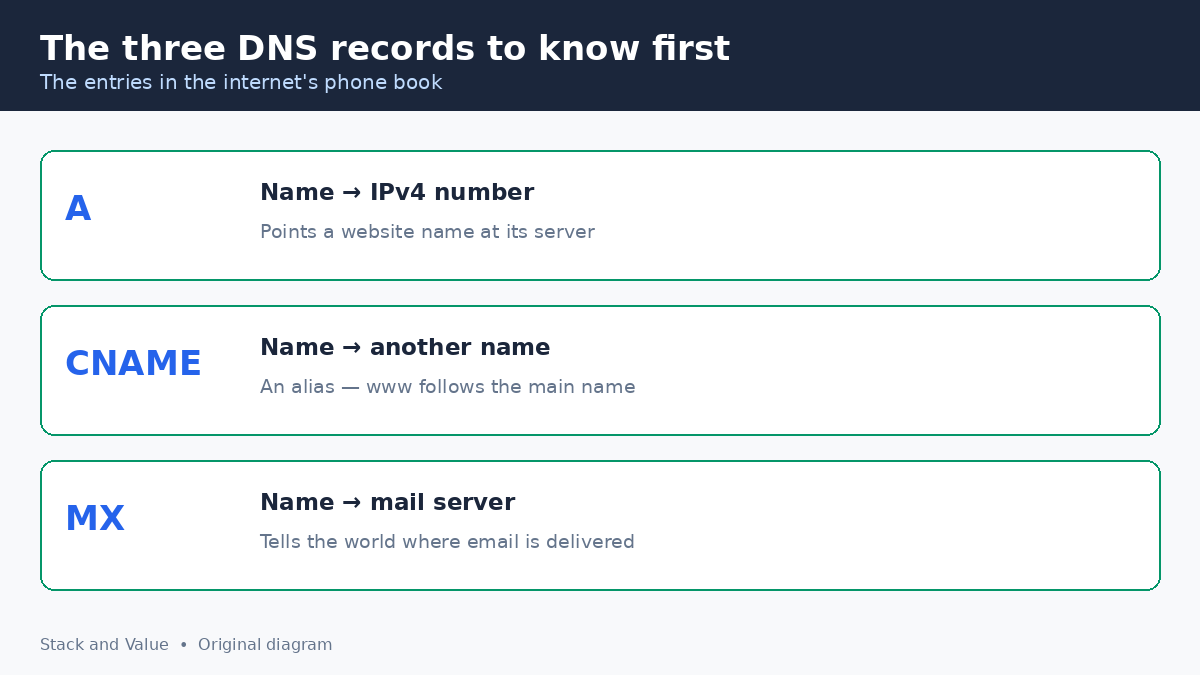
Diagram: Stack and Value (original)
Two close relatives are worth knowing by name: an AAAA record is the same as an A record, but for an IPv6 address, and a TXT record holds text other systems read — commonly to prove you own a domain or to authenticate email. You rarely need to edit any of these unless you run a website or your own email.
Why changing your DNS can help
By default, most people use their internet provider's resolver. Switching to a public resolver is free, takes a few minutes, and can help in three ways:
- Speed. A large public resolver often answers faster and has more names already cached. The gain is usually small — milliseconds per lookup — so pages may feel slightly snappier rather than dramatically faster.
- Privacy. A plain DNS lookup travels unencrypted, so your provider can see which sites you look up. Cloudflare's 1.1.1.1 commits to not selling query data and purging logs within about 24 hours. Google Public DNS (8.8.8.8) says temporary logs including your IP address are deleted within 24–48 hours. Changing DNS does not hide your IP address or make you anonymous — the sites you visit still see you as usual.
- Safety. Quad9 (9.9.9.9) blocks domains known for malware and phishing by default, so a bad link can fail at the lookup stage, before the page ever loads.
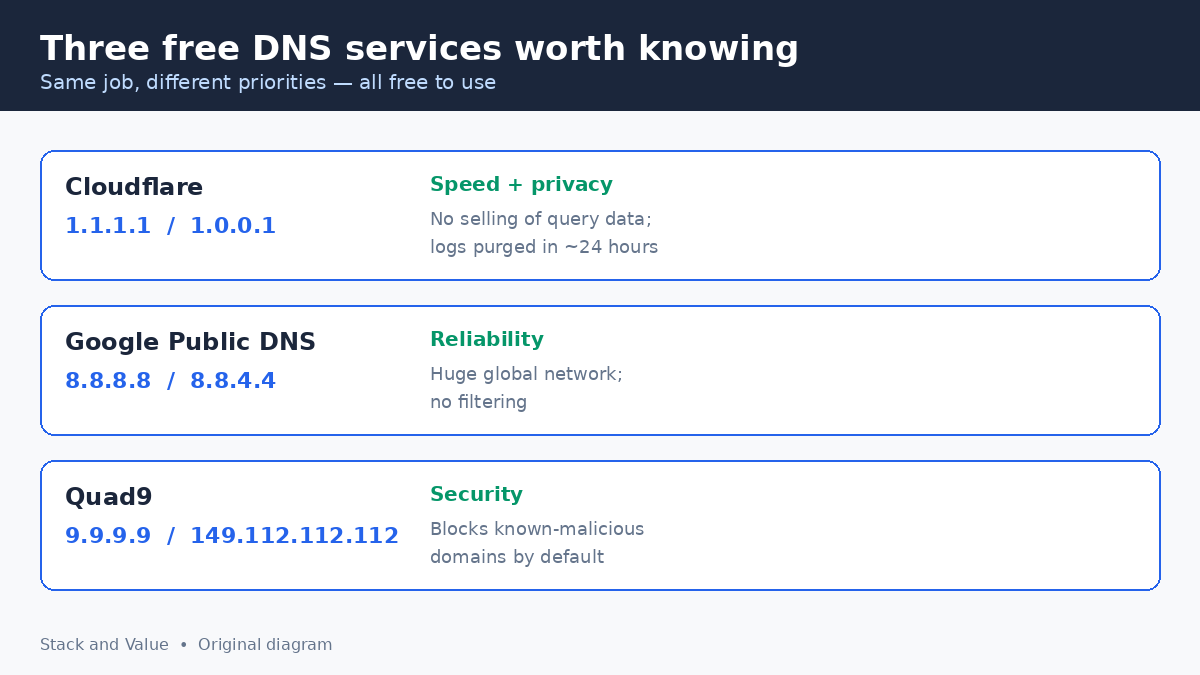
Diagram: Stack and Value (original)
A sensible default: 1.1.1.1 (secondary 1.0.0.1) for speed and privacy, 9.9.9.9 (secondary 149.112.112.112) if you want built-in malware blocking, or 8.8.8.8 (secondary 8.8.4.4) for a dependable no-filtering option.
DNS-over-HTTPS, in one paragraph
DNS-over-HTTPS (DoH) wraps your lookup in the same encryption as a secure web page, sent over the normal HTTPS port (443), so people on your local network — and your provider — cannot read which names you are looking up. The resolver still sees the query; DoH protects it on the way there, it does not remove the resolver from the picture. Modern browsers including Chrome and Firefox support DoH, and Android's Private DNS setting does the closely related DNS-over-TLS system-wide. One honest catch: simply typing 1.1.1.1 into a device's old-style DNS fields changes who answers, but the query may still travel unencrypted unless DoH or Private DNS is on.
How to change DNS
On your router (best — covers every device at home): open the router's admin page (often 192.168.0.1 or 192.168.1.1, or its app), find Internet/WAN or DHCP settings, replace the DNS fields with your chosen primary and secondary addresses, save, and reconnect. Router menus vary a lot, so search the settings for "DNS" if it is not obvious.
On Android: Settings > Network & internet > Private DNS > choose "Private DNS provider hostname" and enter one.one.one.one for Cloudflare or dns.quad9.net for Quad9. This encrypts lookups as well as changing the resolver.
On iPhone or a single computer: you can set DNS per Wi-Fi network (iPhone: Settings > Wi-Fi > tap the ⓘ next to your network > Configure DNS > Manual). To test Cloudflare quickly, its free 1.1.1.1 app sets it up for you. If anything stops loading after a change, switch back to Automatic — that returns you to your provider's resolver.
Bottom line
DNS is a lookup service: names in, numbers out, cached for speed. You do not need to touch it — but switching your resolver to 1.1.1.1, 8.8.8.8, or 9.9.9.9 is a free, reversible five-minute change that can add a little speed, a little privacy, and, with Quad9, a useful layer of malware blocking for every device on your network.



Member discussion