
What Is an IP Address? Public vs Private, Explained in Plain English
Your home has two kinds of IP address at once — one the internet sees, one for each device. What they are, where to find them, and why they fix common mysteries.

Every device on your home network has an address, and it is not the Wi-Fi name. An IP address is the number that lets your router deliver the right web page, video, and game traffic to the right phone, laptop, or TV — and understanding the two kinds, public and private, explains a surprising number of everyday tech mysteries.
What an IP address actually is
IP stands for Internet Protocol. An IP address is a label assigned to a device so data knows where to go, the same way a street address tells a delivery driver which house gets the package. The classic form, IPv4, is four numbers separated by dots, like 192.168.1.24. Each number runs from 0 to 255, which gives about 4.3 billion possible addresses — not enough for a world where one household can own thirty connected devices.
That shortage is why IPv6 exists. IPv6 addresses are much longer, written in hexadecimal groups separated by colons, and there are enough of them that scarcity stops being a problem. Most home networks today quietly use both: IPv4 inside the house, and IPv4 or IPv6 on the way out to the internet.
Public vs private: the two addresses you actually have
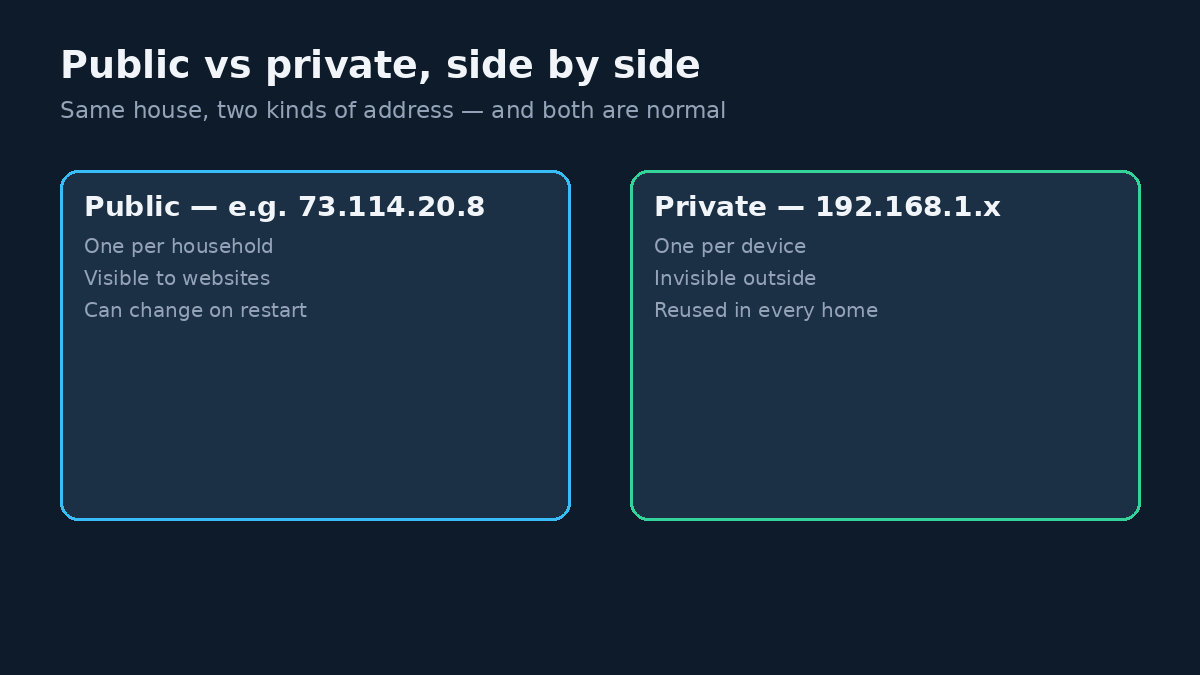
This is the part that confuses people, because your home has both kinds at once:
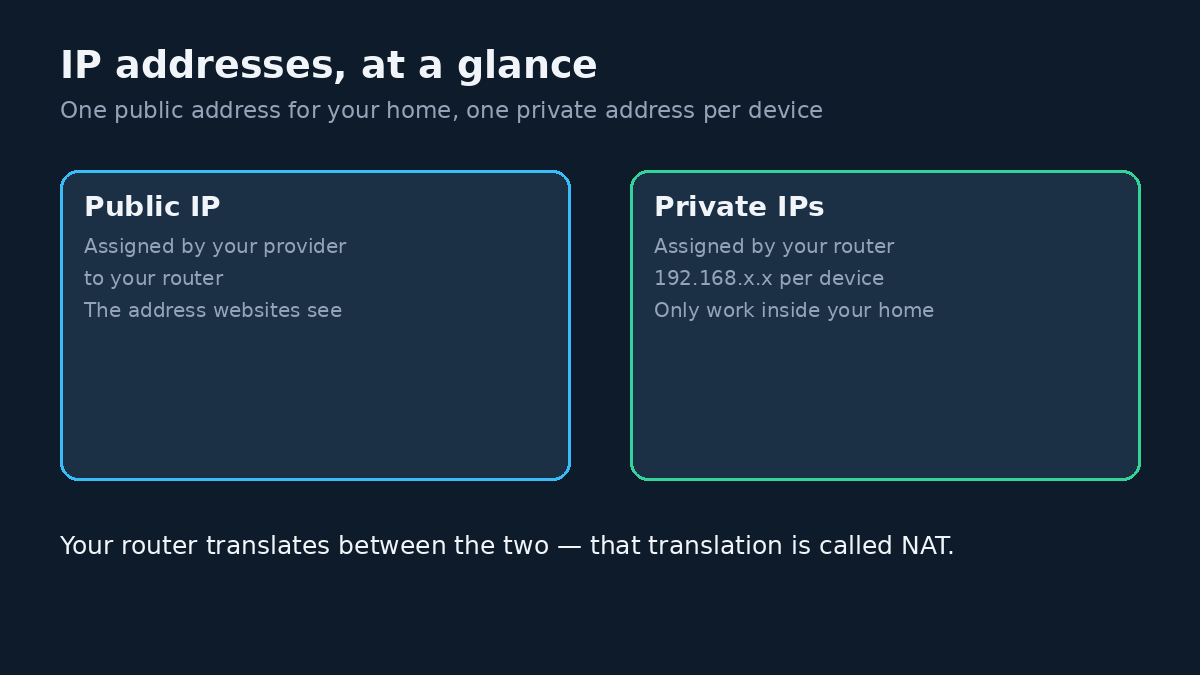
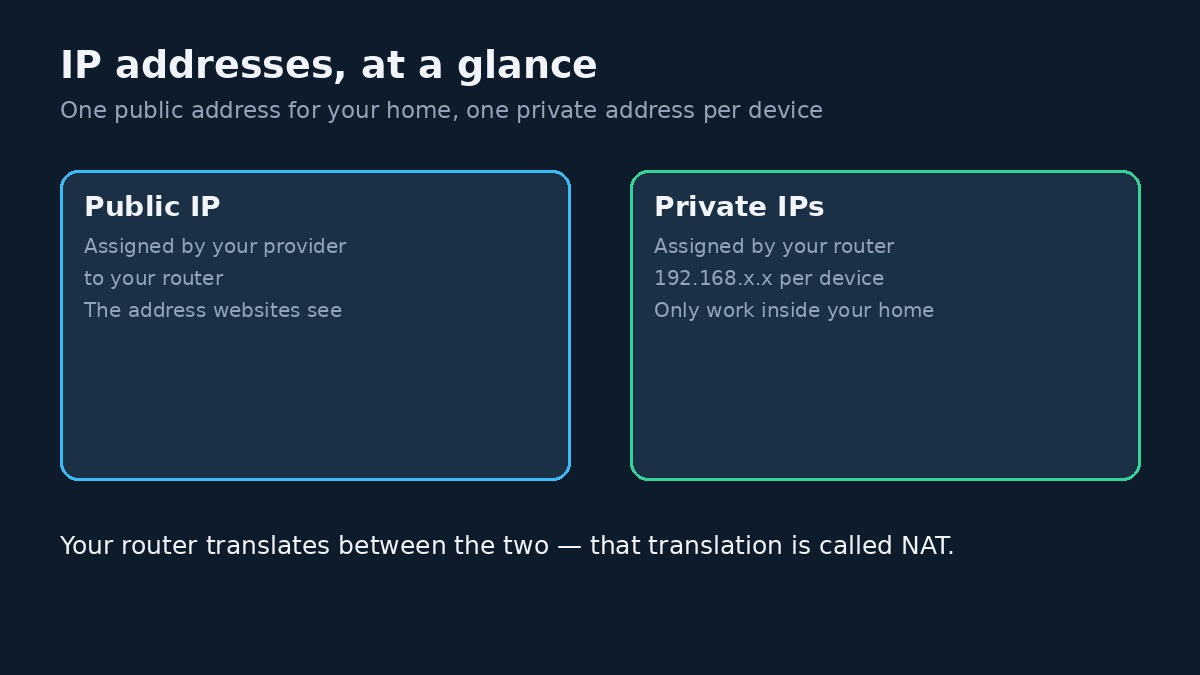
- Your public IP address is assigned by your internet provider to your router. It is the address the outside world sees — websites, game servers, and streaming services all see this one number for your whole household. It can change when your router restarts or your provider rotates it.
- Your private IP addresses are assigned by your router to each device inside the home, usually starting with 192.168. They only work within your network. Your phone might be 192.168.1.24 and your TV 192.168.1.31, and a house across town can use the exact same private numbers without any conflict.
Your router translates between the two, a process called NAT. When your phone requests a page, the router remembers which private address asked, sends the request out under the public address, and routes the reply back to the right device.
How to find yours
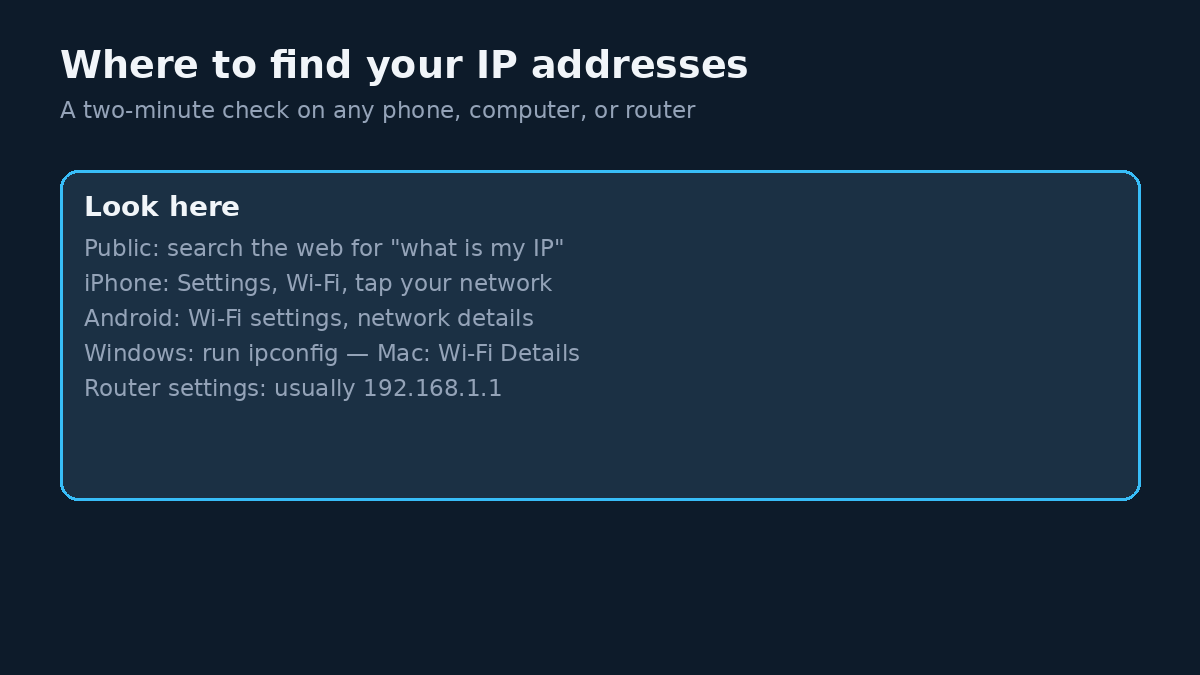
- Public IP: search the web for "what is my IP" — the result at the top is your router's public address. Treat it like a rough location label, not a secret password, but do not post screenshots of it publicly.
- Phone's private IP: on iPhone, open Settings, then Wi-Fi, tap your network, and look for IP Address. On Android, open Wi-Fi settings, tap your network, and check the advanced or details section.
- Computer's private IP: on Windows, run
ipconfigin a terminal; on a Mac, open System Settings, then Wi-Fi, then Details next to your network. - Router's address: usually 192.168.1.1 or 192.168.0.1 — that is the page where router settings live.
Why it matters when something breaks
Knowing which address is which makes common problems easier to describe and fix. Two devices accidentally holding the same private address causes an IP conflict, which looks like random disconnects until one device is restarted. A streaming service that suddenly thinks you moved is reacting to a changed public IP. And when support asks you to check whether a printer is "on the network," they mean its private address — if the printer's address changed, your laptop may be sending documents to a number nothing answers on anymore, which is why setting a fixed reservation for printers in the router helps.
Bottom line
An IP address is simply a delivery label for data. Your router holds one public address that the internet sees, and hands every device at home a private address from the 192.168 range. Once you know which is which — and where to look both up — a whole category of confusing network problems becomes a five-minute check instead of a mystery.

Member discussion